
SmartPort smartly done
We are all still learning. Here are a few tips and tricks that even experienced catalogers may want to review.
Most common errors with importing records:
- Import records for titles/manifestations for which we already have a record
- Multiple ISBN’s are listed in a record– user imports the wrong format
- Forget to add |h[large print] to title field of large print books
- Fail to delete extra ISBN’s
- Import pre-publication records without summaries, subject headings, page counts and other code issues
- Import foreign language (especially German) records
How to avoid:
- Search our catalog first by ISBN and title. If title information is confusing, search by title browse and title keyword. (See below for when to add an ISBN.)
- Always be on the lookout for page numbers! If you can’t find the page count (or the words “unpaged volume”) in the physical description, it’s not a good record for a physical book.
- Check format in line 338. If you see the words “online resource,” don’t import.
- If you see the word “seiten” instead of page, you have a German language record instead of an English language record. Don’t proceed. It will confuse your patrons.
- Add large print books in batches– check your work for the |h[large print] title subfield before you move on. (Review Records for large print books)
- Review your imported records in the Modify Title wizard before adding your item record
- With brand new books, it’s worth the wait for a better record if no patrons are waiting. Check back next week.
- Beware of all caps or all initial caps in the title. In good bib records, book titles are capitalized like sentences—first word and proper nouns only.
-
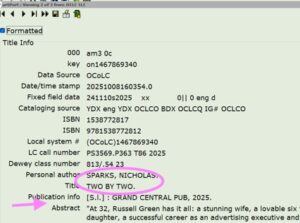
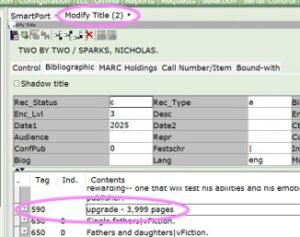
- If patrons are waiting, import the bad record but flag the record in Modify Title by adding a 590 field and the word “upgrade” after you import and add the number of pages.
-
- Click on a field above or below where you want to add your 590 field.
- Right click with your mouse to generate a mini menu and select “add field” above or below
-
-
Hacks for finding records
- If you have a paperback, see if there is a record for the hardcover, and if the page count matches in the bib record. You can find the hardcover ISBN under “see all formats and editions” in Amazon:
-

- If the page count and other descriptive information (introduction, illustrations, etc.) match the bib record for the hardcover, you can import a record for the other ISBN and add your ISBN using the Modify Title wizard.
- Search by title or title and author
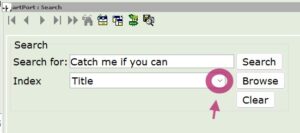
- You can change the index from ISBN to Title with the little arrow
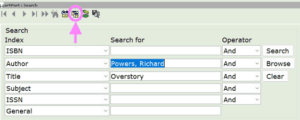
- And you can change the search pane to search multiple fields by choosing the view from the icons on the top of the window
- Search the Melcat gateway for Michigan titles
- Many catalogers were trained to leave the Melcat gateway box unchecked. It’s been know to slow down the search. I don’t find that’s the case any longer. Melcat is a great resource for records for independently published Michigan titles that aren’t available on OCLC.
Remember, add ISBNs for books that match records that are already in our system, delete ISBNs for books that don’t match.
If you can turn to the same page and see the same material, you have a match.
Likely matches: Reprints with same illustrations and introduction—
-
-
- Target edition;
- Scholastic edition;
- trade paperback edition;
- library bound edition;
- hardcover edition;
- they’ve made a movie/Netflix series and changed the cover, but the inside content and illustrations are the same as previous editions;
- added bonus material to the end (interview with the author, book discussion questions, sneak peek of the first chapter of the next book in a series);
- 20th anniversary edition with exactly the same content and pagination.
-
Likely not a match: Changes to content, pagination, format
-
-
- 2nd edition with updated information;
- new illustrations or introduction;
- British edition with different spellings or any translations;
- mass market paperback edition;
- large print edition;
- all ebook editions, including pdf files with static page counts;
- 20th anniversary edition with a new introduction.
-
If the page count is off by more than 2 pages, better to go with a different bib record.
One last word of caution:
Do not use the Modify Title Wizard to change a bib record to a different format or different title.
-
-
- If you think you can do this simply, that means you don’t understand the code involved in creating the record.
- You will end up sending mixed signals to any system that tries to index that record.
- Request the record you want from the UPRLC cataloger if you can’t find it.
-
Remember: You have resources! email support @ superiorlandlibrary (Subject: cataloging) with title, author, ISBN (no dashes or spaces – barcode scanners are great for entering those long strings of numbers into emails), and page count. Or better yet, use the jot form. We can help with finding, upgrading, and building records.
-
Latest News
 Registration open for the 2026 UPRLC Annual ConferenceMay 20, 2026This year’s theme is The Next Chapter! Register here: UPRLC Conference Registration SEPTEMBER 21-22, 2026 AT NORTHERN MICHIGAN UNIVERSITY […]
- Superiorland Library Cooperative’s New Director: Tricia WylieAugust 22, 2025Welcome Tricia! Tricia Wylie is Superiorland Library Cooperative’s new director. Tricia comes to us from the New River Public Library Cooperative, a small […]
- UPRLC Board of Directors Regular Meeting ScheduledApril 15, 2024The next regular meeting of the UPRLC Board of Directors will be held on Monday, June 3, 2024 at 11 AM Central/12 Noon Eastern. The meeting will be held via Zoom […]
- UPRLC Board of Directors Regular Meeting ScheduledMay 22, 2023The next regular meeting of the UPRLC Board of Directors will be held on Tuesday, May 30, 2023 at 12 PM Central/1 PM Eastern. The meeting will be held via Zoom […]